User Guides
Everything you need to get the most out of Mac Analyser. From first launch to advanced AI token tracking — step-by-step documentation for every feature.
Getting Started
Install Mac Analyser and take your first look at the Dashboard.
Download & Install
Download Mac Analyser from the Mac App Store or as a direct DMG from our website. Drag it to your Applications folder and launch. The direct download version offers deeper system access (full storage scans, direct cache clearing) since it runs outside the macOS sandbox.
First Launch
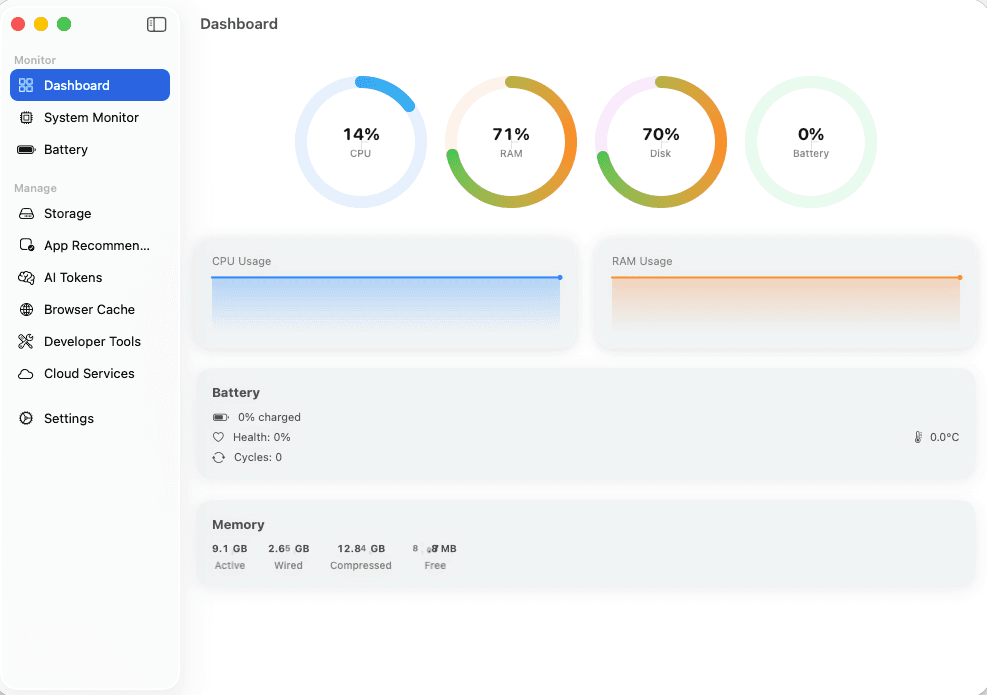
On first launch, you'll see the Dashboard with four real-time gauges: CPU, RAM, Disk, and Battery. These update every 2 seconds by default. Below the gauges you'll find CPU and RAM sparkline charts showing recent trends, plus a battery summary card and memory breakdown.
Menu Bar Widget
Mac Analyser installs a compact menu bar widget showing live CPU and RAM percentages. Click it to quickly open the full app. You can customize which metrics appear (or hide the widget entirely) from Settings > General.
Free vs Premium
The free tier gives you 3 uses per week of core features (Dashboard, System Monitor, basic Battery, Menu bar widget). Premium features like AI token tracking, storage management, developer tools, and cloud services require a paid plan. Choose monthly ($3.99), yearly ($39.99), or the lifetime deal ($79.99) for permanent access to everything.
System Monitor
Deep dive into CPU cores, memory pressure, and running processes.
CPU Core Monitoring
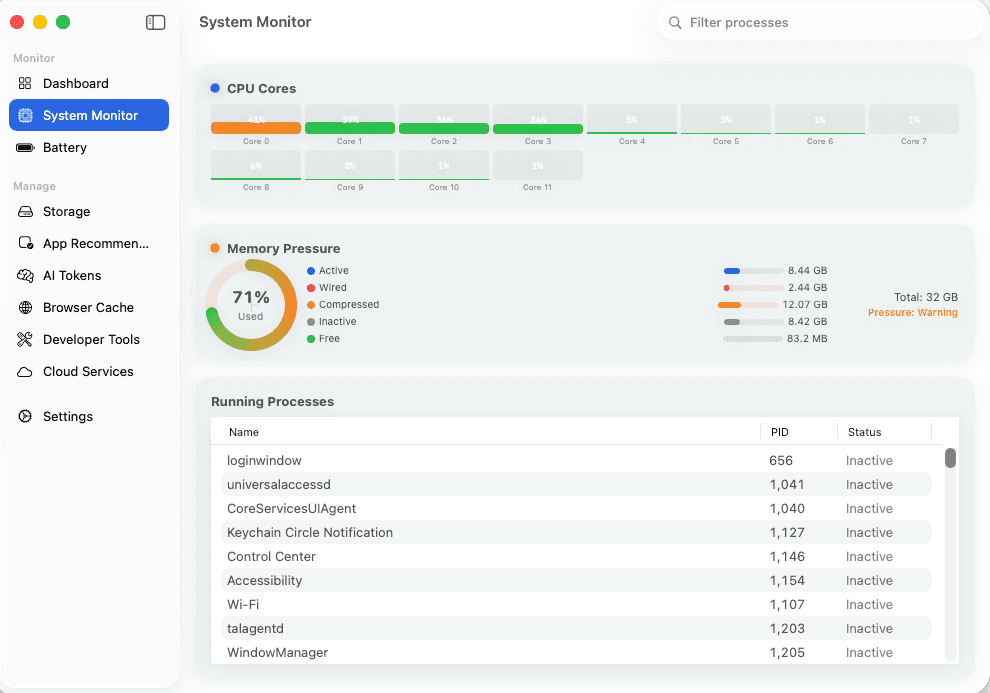
The System Monitor shows individual usage for every CPU core on your Mac. Each core displays a colored bar: green under 40%, orange between 40-70%, and red above 70%. This helps identify single-threaded bottlenecks or thermal issues.
Memory Pressure
The memory pressure gauge shows how hard your Mac is working to manage RAM. You'll see a breakdown of Active, Wired, Compressed, Inactive, and Free memory with exact GB values. The pressure level indicator (Nominal/Warning/Critical) tells you at a glance if you need to close apps.
Running Processes
A searchable table lists all running processes with PID and status. Use the search bar to quickly filter by name. With Premium, you also see per-process CPU and RAM usage to identify exactly which app is consuming resources.
Adjusting Poll Interval
By default, metrics update every 2 seconds. Go to Settings > General to change this to 1s (more responsive), 5s, or 10s (lower power usage). This affects all real-time monitoring across Dashboard and System Monitor.
Battery Intelligence
Track battery health, cycles, temperature, and capacity over time.
Battery Overview
The Battery screen shows current charge percentage, health percentage, cycle count, temperature (°C), voltage (mV), amperage (mA), and power consumption (Watts). If connected to power, you'll see charger wattage and time to full charge.
Understanding Health
Battery health shows your current maximum capacity vs. the original design capacity. A new battery starts at 100%. Apple considers batteries to be consumed when health drops below 80%. Mac Analyser reads this directly from IOKit — the same data source macOS uses internally.
Historical Charts (Premium)
Premium users get 30-day historical charts for charge level and temperature. Switch between 24-hour, 7-day, and 30-day views to spot trends. Battery snapshots are recorded every 5 minutes for granular data.
Capacity Tracking (Premium)
Track Current Capacity (mAh), Maximum Capacity (mAh), and Design Capacity (mAh) over time. This shows you exactly how much your battery has degraded and helps predict when you might need a replacement.
Storage Management
Visualize disk usage, find large files, and clean system caches.
Storage Overview
The Overview tab shows a disk usage gauge with used/free/total space. Below that, a treemap visualization maps your home directory structure, making it easy to see which folders consume the most space. Click 'Scan' to analyze your directory.
Large File Finder (Premium)
The Large Files tab scans your system for files over 100MB. Each result shows the file name, size, and full path. This is the fastest way to find forgotten disk images, old downloads, or massive log files consuming space.
Cache Cleaner (Premium)
The Cache Cleaner tab detects system cache directories and shows total cache size. Click 'Clear' to safely remove cache files and reclaim space. The direct download version can clear caches directly; the App Store version guides you to the cache locations.
AI Token Tracking
Monitor spending across OpenAI, Anthropic, Google, and 7+ more AI providers.
Adding API Keys
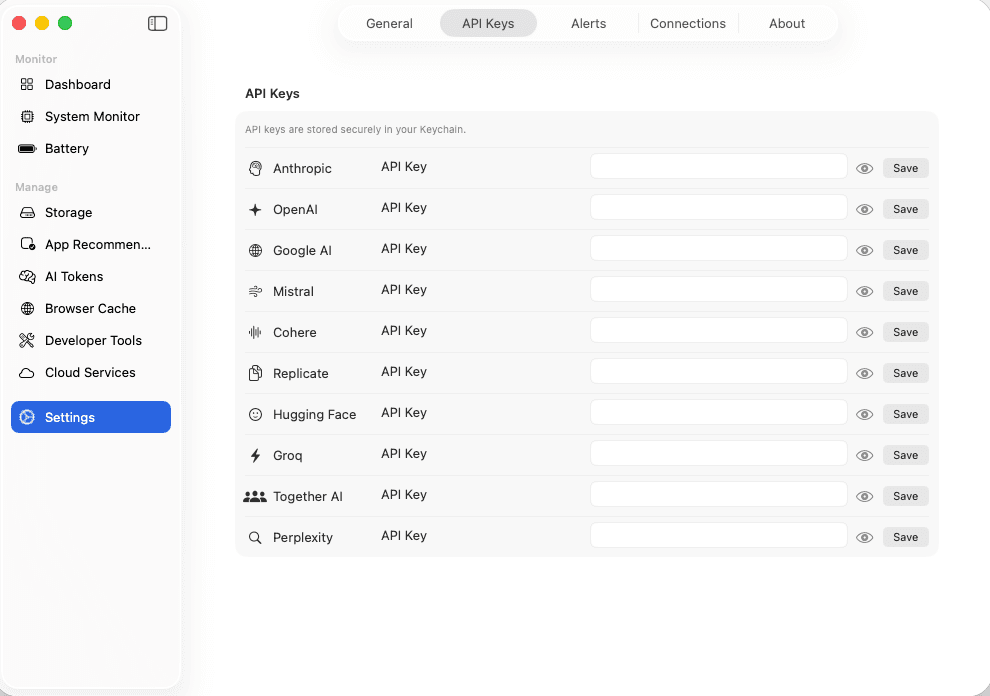
Go to Settings > API Keys. You'll see fields for each supported provider: OpenAI, Anthropic, Google AI, Mistral, Groq, Cohere, Hugging Face, Together AI, Replicate, and Perplexity. Paste your API key and click Save. Keys are stored securely in macOS Keychain — never in plain text.
Viewing Usage
Navigate to the AI Tokens screen to see your total cost (USD), total token count, and a count of connected providers. A bar chart breaks down cost by provider, and a second chart shows input vs. output token distribution.
Provider Details
Below the charts, each connected provider shows its total cost, total tokens, input tokens, output tokens, and the last time data was refreshed. Tap a provider for detailed breakdowns.
Refresh Settings
By default, usage data refreshes every hour. Go to Settings > General > AI Usage to change this to 15 minutes, 30 minutes, 1 hour, or 6 hours. You can also manually refresh at any time from the AI Tokens screen.
Spending Alerts
Go to Settings > Alerts to set a monthly spending threshold in USD. Mac Analyser will notify you when your combined AI spending exceeds this amount, helping you avoid surprise bills.
Browser Cache Analysis
Detect and clear cache from Chrome, Safari, Firefox, Edge, Brave, and Opera.
Automatic Detection
Mac Analyser automatically detects which browsers are installed on your Mac. Supported browsers include Chrome, Safari, Firefox, Edge, Brave, and Opera. Each browser's cache size is calculated and displayed individually.
Clearing Cache
Click the 'Clear' button next to any browser to remove its cache. You'll see a success toast notification confirming how much space was freed. A summary card at the top shows total cache across all browsers.
When to Clear
Browser caches can accumulate several gigabytes over time. Clearing them is safe — your browser will simply re-download assets as needed. Bookmarks, passwords, and history are not affected.
App Recommendations
Find unused and oversized apps with smart removal suggestions.
Running a Scan
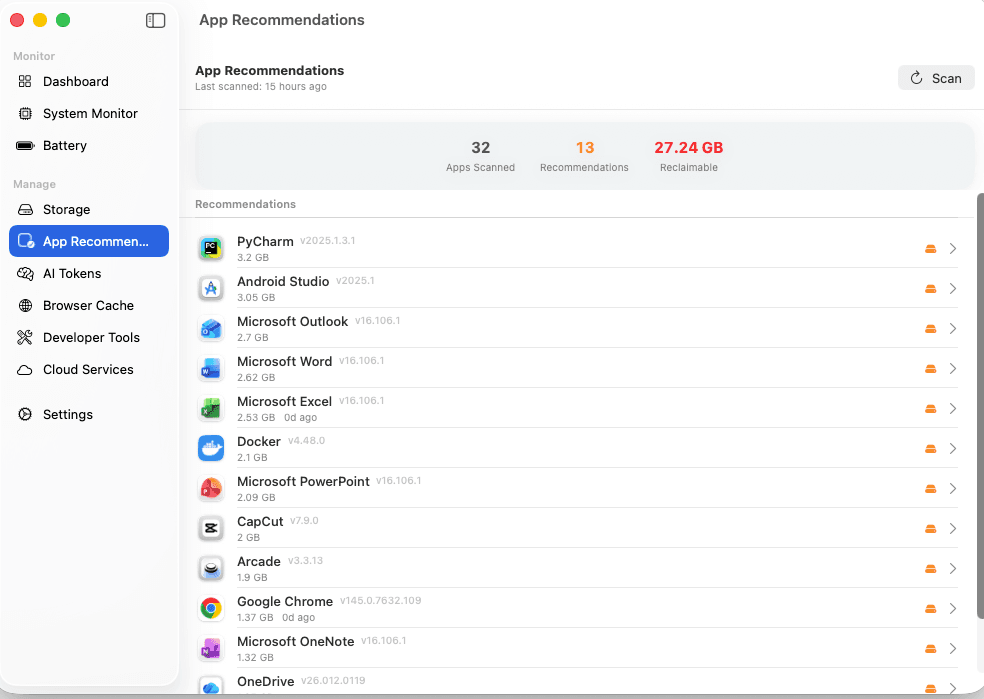
Click 'Scan' on the App Recommendations screen. Mac Analyser examines all installed applications, checking their size, version, and last-used date. Results show total apps scanned, number of recommendations, and total reclaimable space.
Understanding Recommendations
Each recommendation includes the app name, version, size, and days since last use. Severity badges are color-coded: yellow for 30+ days unused, orange for 90+ days, and red for very large apps (1GB+). Expand any recommendation to see detailed reasoning.
Taking Action
For each recommended app, you can 'Reveal in Finder' to locate it or 'Dismiss' to remove it from recommendations. Dismissed apps appear in a collapsible section at the bottom in case you change your mind.
Developer Tools
Clean build caches and inventory your development environment.
Developer Caches
The Dev Caches tab groups detected caches by category: Xcode (DerivedData), Package Managers (npm, pip, gem, Homebrew, composer), Compiler Caches (Rust/Cargo, Go modules), and IDE Caches (VSCode, IntelliJ). Each shows total size with a one-click 'Clear' button.
Clearing Caches Safely
Expand any cache category to see descriptions and file paths. Clearing build caches is safe — your next build will simply regenerate them. This is especially useful after upgrading Xcode or switching between projects, when DerivedData can balloon to tens of gigabytes.
Software Inventory
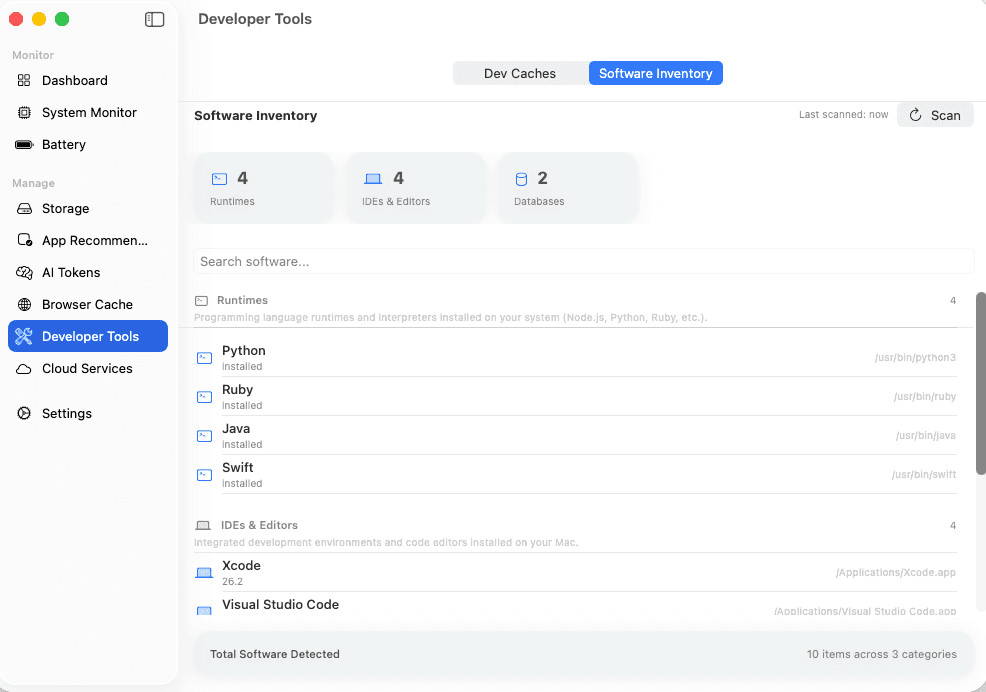
The Software Inventory tab catalogs everything installed: Runtimes (Python, Ruby, Java, Swift, Node.js), IDEs & Editors (Xcode, VS Code, IntelliJ), Databases (PostgreSQL, MySQL, MongoDB), and Package Managers. Search and filter to find exactly what's on your machine.
Cloud Storage Dashboard
Unified view of Google Drive, Dropbox, OneDrive, and iCloud.
Connecting Providers
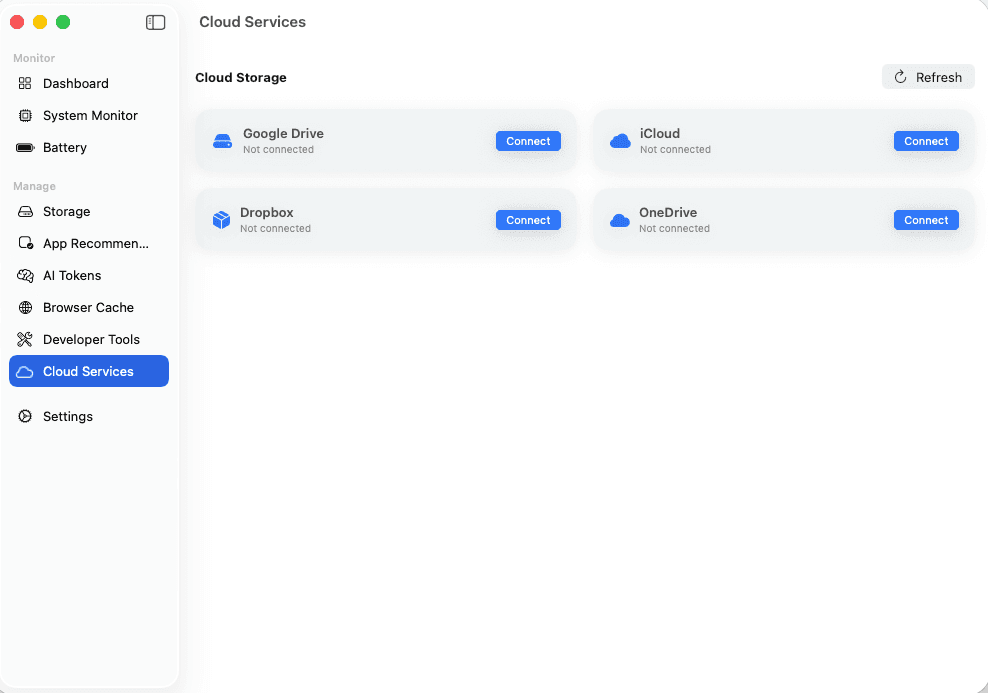
Click 'Connect' on any cloud storage card. You'll be directed through the provider's OAuth flow to authorize Mac Analyser. Only read permissions are requested — Mac Analyser never accesses or modifies your files.
Viewing Usage
Once connected, each provider card shows used space, total space, free space, and a usage percentage gauge. The total cloud storage summary at the top aggregates all providers for a bird's-eye view.
Managing Connections
Disconnect at any time by clicking 'Disconnect' on the provider card. OAuth tokens are immediately removed from Keychain. You can also manage connections from Settings > Connections.
Settings & Configuration
Customize monitoring intervals, manage API keys, and configure alerts.
General Settings
Configure the monitoring poll interval (1s / 2s / 5s / 10s), toggle the menu bar widget, and choose which metrics appear in the menu bar (CPU, RAM, or both).
API Keys
Add or update API keys for each AI provider. Each key has a show/hide toggle and individual Save button. Keys are encrypted in macOS Keychain.
Alerts
Set a monthly AI spending threshold in USD. When combined spending across all providers exceeds this amount, Mac Analyser sends a notification.
Connections
View and manage OAuth connections for cloud storage providers. Connect or disconnect Google Drive, Dropbox, and OneDrive from this tab.